Digital Imaging

Provides a comprehensive practical guide to the entire digital chain, from capture -- with coverage of digital cameras, to output -- with extensive information on image adjustments and colour management.
 TABLE OF CONTENTS
 Layers allows increased flexibility whilst retouching and the ability to create complex digital photomontages. Layers are like a series of acetate sheets, each with a different part of the image, stacked on top of each other. The classic Walt Disney animations were created using this versatile imaging technique. Each character can be placed on their own acetate sheet so that when the character is moved the background does not have to be continuously redrawn.
Parts of a layer may be transparent allowing information on the layers underneath to be visible. At the bottom of the stack is the background layer which remains opaque. The layers can be rearranged so that pixels may be brought forward or concealed behind the pixels on the layers above. Layers are controlled via the layers palette and layers menu.
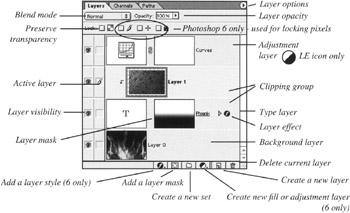
Click on a layer in the layers palette to make it active (only one layer can be active at a time). Modifications usually only affect the active layer. It is common for new users to experience the problem of trying to edit pixels on a layer that has not been selected. Always check the correct layer has been selected prior to editing a multilayered image.
A selection is always pasted onto a new layer.
All layers in the same image have the same resolution and image mode.
Each layer in the same image must have the same resolution and image mode (a selection that is imported into another image will take on...