Digital Imaging
Provides a comprehensive practical guide to the entire digital chain, from capture -- with coverage of digital cameras, to output -- with extensive information on image adjustments and colour management.
 TABLE OF CONTENTS
 It is possible to rotate, crop and resample an image in one action. Crop to a specific size and resolution in order to optimise the file size and reset the resolution from the scanning to the output resolution.
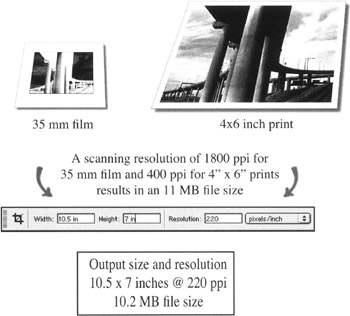
Scan a photograph to obtain a file size a little over 11 Megabytes.
Click the crop icon to display its 'Options'. When using LE double-click the crop icon to display its options palette and select 'Fixed Target Size' together with the units of measurement you want from the options.
Enter values for the size and resolution of your output image (enter 'in' for inches or 'cm' for centimetres after the unit of measurement when using Photoshop 6).
Drag the cropping marquee over the image to select the area for cropping.
When the mouse button is released, the crop marquee appears with handles.
Adjust the crop marquee by dragging the handles:
Rotate the marquee by dragging the curved arrow icon that appears when the pointer is positioned near a corner handle.
Press the Enter/Return key to complete the crop or Esc. to cancel.
| Note | To crop using precise measurements constrains the 'aspect ratio', e.g. an 8 x 10 inch print has an aspect ratio of 4:5 whilst a 35mm negative has the different aspect ratio of 2:3. If the aspect ratio of the fixed target size does not conform to the aspect ratio of the original capture or scan then some loss of the original image will result. |