The Focal Easy Guide To Flash MX 2004: For New Users and Professionals
Follow the steps given in Chapter 6 to create a simple button and call it btnNumbers. Drag a copy onto the Stage.
Hold down the ALT key and drag out two copies of this button. Use the Align panel to make sure that they are evenly spaced.
Name this layer ' buttons' and then add a second layer above called ' btnText. Lock the buttons layer.
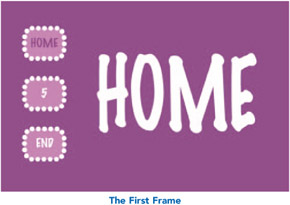
Using the same color as your background, type the word HOME and position it over the first button. Using a contrasting color, type the word HOME again, make the font size very large and position this on the other side of your page.

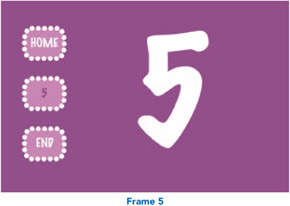
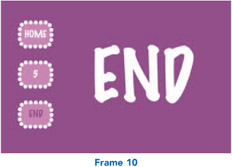
Using this same contrasting color, type in 5 and then the word END. Place each of these over the other two buttons.
The text is going to change in color and content over time but the basic buttons will not, so the buttons layer just needs frames not keyframes. Click on frame 10 of the buttons layer and F5 to insert frames.

Insert a keyframe on frame 5 of the btnText layer. Delete HOME, add 5 and change the text colors as per the diagram above.

Insert a keyframe on frame 10 of the btnText layer. Delete 5, add END and change the text colors as per the diagram above.
Now...