The Focal Easy Guide To Flash MX 2004: For New Users and Professionals
Chapter 14: Putting Flash on the Web

Now that you have designed and produced a slick, all-singing, all-dancing Flash web site, what are the practicalities of putting it on the web?

Accessibility

One of the new features of Flash MX 2004 is the Accessibility panel, which makes it straightforward to add accessibility features to your Flash projects that will make them easier to use with audio browsers.

Remember that, in many cases, accessibility is a legal requirement and the responsibility for this lies with the designer/developer.

  1. To open this panel, go to Window > Other Panels > Accessibility.

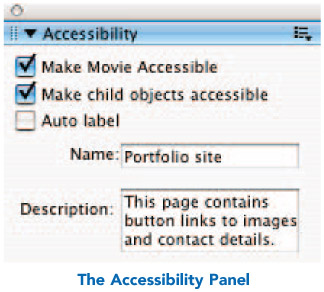
  2. When the background of the Stage is clicked on and the Document properties are showing in the Properties Inspector, you will see the following settings in the Accessibility panel:

  3. Make Movie Accessible is on by default. This allows accessibility information about your whole movie to be passed to a screen reader program by Flash Player. It will allow the software to 'read' out loud the names and descriptions you have given.

  4. Add a name and a description summarizing all the elements on screen that do not contain text. It will help users who are browsing with a screen reader if you include information about the layout and navigation controls.

  5. Flash Player automatically provides a name for static text and dynamic text, which is actually the same as the contents of the text, so text does not need to be labeled through the Accessibility panel.

  6. Make Child Objects Accessible

UNLIMITED FREE
ACCESS
TO THE WORLD'S BEST IDEAS

SUBMIT
Already a GlobalSpec user? Log in.

This is embarrasing...

An error occurred while processing the form. Please try again in a few minutes.

Customize Your GlobalSpec Experience

Category: Graphic Design Services
Finish!
Privacy Policy

This is embarrasing...

An error occurred while processing the form. Please try again in a few minutes.