The Focal Easy Guide To Flash MX 2004: For New Users and Professionals
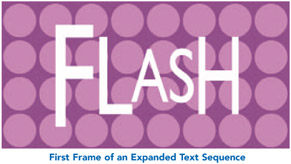
Timeline Effects are prebuilt effects allowing you to easily create and duplicate animated text, graphic symbols, shapes, and groups, imported bitmaps, button, and movie clip symbols.
To apply a Timeline Effect, select the object you want to apply it to and then select the required Effect from the Insert menu.

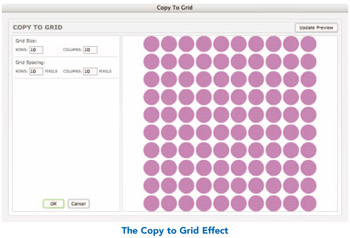
Insert > Timeline Effects > Assistants > Copy to Grid creates copies in the shape of a grid.
Update Preview allows you to see the changes that you have made to the Effect perameters.

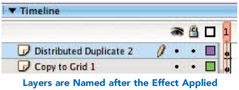
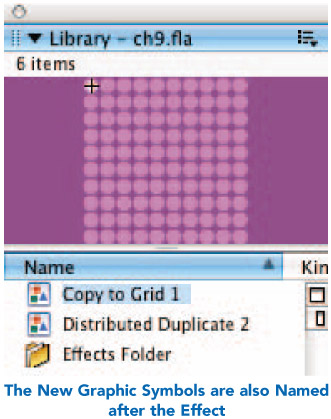
The settings are saved within a graphic symbol that can be found in your library with the rest of your symbols and imported bitmaps.

If you want to separate the grid into individual pieces, then choose Modify > Break Apart.
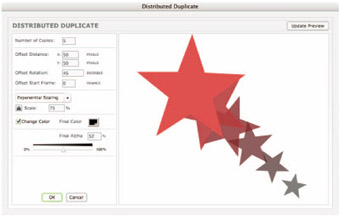
Insert > Timeline Effects > Assistants > Distributed Duplicate creates copies in a line.

Insert > Timeline Effects > Effects > Blur is used to create an animated fade out.
Insert > Timeline Effects > Effects > Drop Shadow allows you to create a drop shadow. Entering positive numbers into the Shadow Offset boxes will place your shadow in the bottom left corner. Entering negative numbers in both the X and Y boxes will place your shadow in the top right corner. Unfortunately, there is no control to allow you to rotate or skew the drop shadow, so I prefer to create them manually.

Insert...