The Focal Easy Guide to Macromedia Flash 8: For New Users and Professionals
Chapter 4: Selecting and Modifying

As we have seen in the previous chapter, the beauty of vector drawing is that it is so easily adaptable. Basic artwork is known as shape data and can be edited, molded and manipulated.

Making Selections

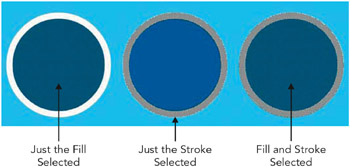
  1. If you have created a shape with a fill and a stroke, clicking it once with the Selection tool will only select the fill. To select all drawn elements connected to one shape, double click with the Selection tool.


    The Selection Tool


    Fill and Stroke Selection

  2. To select several shapes within a rectangular marquee area, click and drag a box around all the shapes with the Selection tool. Symbols, groups and text objects must be completely enclosed to be selected.

  3. You can also duplicate with the Selection tool. SHIFT + drag selection makes a copy.

  4. To create an area of selection by drawing, use the Lasso tool. When the cursor is over a selected element, the Lasso tool becomes an arrow that you can use to move the element.


    The Lasso Tool

  5. To make multiple marquee or Lasso tool selections, press SHIFT while you lasso or marquee-select.

  6. To select everything on every layer of the scene, choose Edit > Select All, or press /CTRL + A.

  7. To deselect everything on every layer, choose Edit > Deselect All, or press / CTRL + SHIFT + A.

Modifying Drawings

  1. The Selection

UNLIMITED FREE
ACCESS
TO THE WORLD'S BEST IDEAS

SUBMIT
Already a GlobalSpec user? Log in.

This is embarrasing...

An error occurred while processing the form. Please try again in a few minutes.

Customize Your GlobalSpec Experience

Category: Honing, Lapping, and Super-finishing Machines
Finish!
Privacy Policy

This is embarrasing...

An error occurred while processing the form. Please try again in a few minutes.