The Focal Easy Guide to Macromedia Flash 8: For New Users and Professionals
Creating a Button Symbol

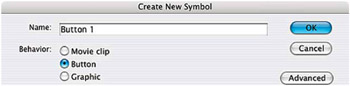
  1. Start off by making a new symbol: Insert > New Symbol and add the settings shown in the diagram below:


    Creating a New Symbol

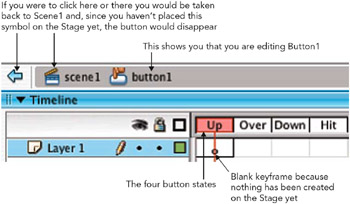
  2. The first thing you may notice is that the Timeline looks different and that it says Scene1 Button1 on the left-hand side of the Edit Bar.


    Button Timeline

  3. A Button symbol has four frames in its Timeline and they represent the following states:

    • Frame 1 UP = How the button looks when the mouse/cursor is no-where near it.

    • Frame 2 OVER = How the button looks when the mouse/cursor is over it.

    • Frame 3 DOWN = How the button looks when it is clicked on.

    • Frame 4 HIT = The size and shape of the area that will trigger a response when the mouse/cursor interacts with it. This shape must always be a solid filled shape.

  1. If all of these four frames are the same, then you have a simple button. If each frame is different then the button will change with user interaction: in other words it will be a rollover button.

  2. You can create invisible buttons by only having a solid shape in the HIT state and nothing in the other three frames. This can be useful for placing over an illustration to trigger a response.

  3. Start off by creating a basic button design...

UNLIMITED FREE
ACCESS
TO THE WORLD'S BEST IDEAS

SUBMIT
Already a GlobalSpec user? Log in.

This is embarrasing...

An error occurred while processing the form. Please try again in a few minutes.

Customize Your GlobalSpec Experience

Category: Computer Mice and Pointing Devices
Finish!
Privacy Policy

This is embarrasing...

An error occurred while processing the form. Please try again in a few minutes.