The Focal Easy Guide to Macromedia Flash 8: For New Users and Professionals
Using several layers in Flash allows you to create a complex scene and have more control over your artwork. If you have been drawing in Merge mode rather than Object mode (cf. Chapter 3), you need to put graphic elements that you want to keep separate on individual layers so they do not merge with the shape underneath.
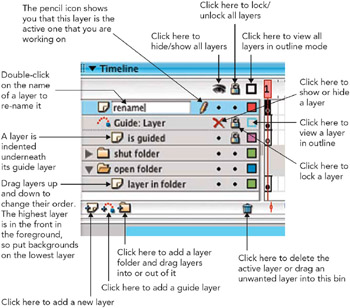
By default there is one layer in your Timeline. To create a new layer: Insert > Timeline > Layer or more simply click on the add layer icon.
Layers
Each layer has its own color. This is seen when viewing an anchor point path or when seeing the layer in outline view. You can change this outline color so that it contrasts more effectively with the background that you are using. To do this, first select the layer, then Modify > Timeline > Layer Properties or more simply CTRL/RIGHT-click on the layer and select Layer Properties. The outline color can be changed in the window that opens.
Changing the Color of a Layer s Outline In the Layer Properties Window
If you click on a layer s name, you will automatically select all the elements on that layer.
Any item that is going to be animated, however small, needs to be on a separate layer, otherwise Flash may not be able to interpret the animation properly.
If you have separate elements on one layer that really should be...