The Focal Easy Guide to Macromedia Flash 8: For New Users and Professionals
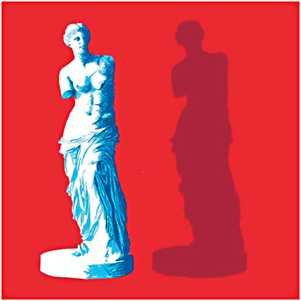
Step By Step Create a Manual Drop Shadow

Now, let s look at an example of using layers. Later in the book we ll look at using Timeline Effects to automatically create drop shadows. However, creating them manually gives you a lot more control and creativity over the whole process.

  1. Duplicate it /CTRL + D or SHIFT + ALT + drag selection makes a copy with the Selection tool.

  2. Cut ( /CTRL + X) and paste ( /CTRL + V) and put your shadow on a layer below.

  3. While the shape is still selected, change the fill to a dark color and change alpha transparency in the Color Mixer panel to a low figure in this example I used 30%.


    Creating a Drop Shadow

  4. Modify > Shape > Soften Fill Edges (but beware as this can take time to process and add to the file size in the case of complex shapes). In the example I used a Distance of 5 pixels and Number of steps 5. Select your shadow and its new softened edge and Modify > Group to keep all the elements together.


    Positioning the Drop Shadow


    Rotate and Skew Options

  5. Examine where the light in your picture is coming from, offset by a few pixels and use the Rotate and Skew options in the Free Transform tool to position your shadow correctly.

UNLIMITED FREE
ACCESS
TO THE WORLD'S BEST IDEAS

SUBMIT
Already a GlobalSpec user? Log in.

This is embarrasing...

An error occurred while processing the form. Please try again in a few minutes.

Customize Your GlobalSpec Experience

Category: CRT Monitors
Finish!
Privacy Policy

This is embarrasing...

An error occurred while processing the form. Please try again in a few minutes.