Adobe Photoshop Elements 3.0: A Visual Introduction to Digital Imaging

Professional Tonal Control

The Brightness/Contrast feature that we looked at in the last chapter is a great way to start to change the tones in your images, but as your skill and confidence increase you might find that you want a little more control. Adobe included the Histogram feature and the Levels function from Photoshop in Elements for precisely this reason.

Editor: Window > Histogram

Version 1.0/ 2.0: Image > Histogram

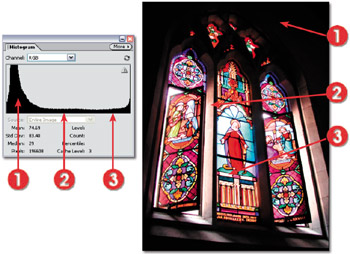
The first step in taking charge of your pixels is to become aware of where they are situated in your image and how they are distributed between black and white points. The Histogram palette displays a graph of all the pixels in your image. The left-hand side represents the black values, the right the white end of the spectrum. As we already know, in a 24-bit image there are a total of 256 levels of tone possible from black to white each of these values is represented on the graph. The number of pixels in the image with a particular brightness or tone value is displayed on the graph by height. See Figure 5.7.


Figure 5.7: The Histogram provides graph-based information about the spread of pixel tones within your image so that you can see the number of pixels grouped in the shadows (1), midtones (2) and highlights (3) areas.

Knowing Your Images

After a little time viewing the histograms of your images, you will begin to see a pattern in the way that certain styles of...

UNLIMITED FREE
ACCESS
TO THE WORLD'S BEST IDEAS

SUBMIT
Already a GlobalSpec user? Log in.

This is embarrasing...

An error occurred while processing the form. Please try again in a few minutes.

Customize Your GlobalSpec Experience

Category: Low Light Cameras
Finish!
Privacy Policy

This is embarrasing...

An error occurred while processing the form. Please try again in a few minutes.