Adobe Photoshop Elements 3.0: A Visual Introduction to Digital Imaging

Advanced Color Control

In traditional imaging it is very difficult to manipulate the hues in an image. Thankfully, this is not the case in digital picture making. Fine control over color intensity and location is an integral part of the new technology. Apart from the Variations and Color Cast features that we looked at in the last chapter, Elements also contains the Hue/Saturation command and the Auto Color feature.

Editor: Enhance > Auto Color Correction

Version 2.0: Enhance > Auto Color Correction

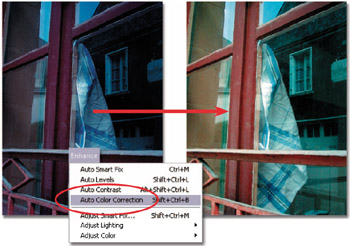
This feature works in a similar way to Auto Levels and Auto Contrast in that it identifies the shadows, midtones and highlights in an image and uses these as a basis for image changes. The feature adjusts the contrast of the image by remapping the shadows and highlights to black and white, and neutralizes any color casts by balancing the red, green and blue values in the picture's midtones.

As with most auto functions, this tool works well for the majority of images. For most users this is a good place to start to enhance and correct images, but for those occasions where Auto Color Correction produces poor results then my suggestion is to undo the automatic changes and rework the picture using either the Variations or Color Cast features. See Figure 5.13.


Figure 5.13: The Auto Color Correction provides a one-dick solution to most color cast problems.

Editor: Enhance > Adjust Color > Hue/Saturation

Version 2.0: Enhance > Adjust Color > Hue/Saturation
Version 1.0: Enhance > Color...

UNLIMITED FREE
ACCESS
TO THE WORLD'S BEST IDEAS

SUBMIT
Already a GlobalSpec user? Log in.

This is embarrasing...

An error occurred while processing the form. Please try again in a few minutes.

Customize Your GlobalSpec Experience

Category: Color Meters and Appearance Instruments
Finish!
Privacy Policy

This is embarrasing...

An error occurred while processing the form. Please try again in a few minutes.