Adobe Photoshop Elements 3.0: A Visual Introduction to Digital Imaging

Changing the Size of Your Images

As we have seen in earlier chapters, the size of a digital image is measured in pixel dimensions. These dimensions are determined at the time of capture or creation. Occasionally, it is necessary to alter the size of your digital photograph to suit different output requirements. For instance, if you want to display an image that was captured in high resolution on a website, you will need to reduce the pixel dimensions of the file to suit.

Grouped under the Resize option of the Image menu, Elements provides a couple of sizing features which can be used to alter the dimensions of your picture. PROCEED WITH CAUTION. Increasing or decreasing the dimensions of your images directly affects the quality of your files, so my suggestion is that until you are completely at home with these controls always make a backup file of your original picture before starting to resize.

Editor: Image > Resize > Image Size

Version 2.0/1.0: Image > Resize > Image Size

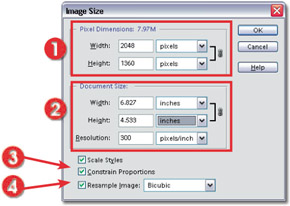
The Image Size dialog provides several options for manipulating the pixels in your photograph. At first glance the settings displayed here may seem a little confusing, but if you can make the distinction between the Pixel Dimensions of the image (shown in the topmost section of the dialog) and the Document Size (shown in the middle), it will be easier to understand. See Figure 5.48.


Figure 5.48: The Image Size dialog controls the dimensions and resolution of your pictures.
(1)...

UNLIMITED FREE
ACCESS
TO THE WORLD'S BEST IDEAS

SUBMIT
Already a GlobalSpec user? Log in.

This is embarrasing...

An error occurred while processing the form. Please try again in a few minutes.

Customize Your GlobalSpec Experience

Category: CMOS Cameras
Finish!
Privacy Policy

This is embarrasing...

An error occurred while processing the form. Please try again in a few minutes.