Adobe Photoshop Elements 3.0: A Visual Introduction to Digital Imaging

Retouching Techniques

Used for more than just enhancing existing details, these techniques are designed to rid images of visual information, like dust and scratches, which can distract from the main picture.

Editor: Filter > Noise > Dust & Scratches

Version 2.0/1.0: Filter > Noise > Dust & Scratches

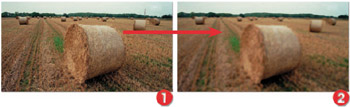
It seems that no matter how careful I am, my scanned images always contain a few dust marks. The Dust & Scratches filter in Elements helps to eliminate these annoying spots by blending or blurring the surrounding pixels to cover the defect. The settings you choose for this filter are critical if you are to maintain image sharpness whilst removing small marks. Too much filtering and your image will appear blurred, too little and the marks will remain. See Figure 5.29.


Figure 5.29: Too much Dust & Scratches filtering can destroy image detail and make the picture fuzzy. (1) Original picture. (2) Photo after too much dust and scratches filtration.

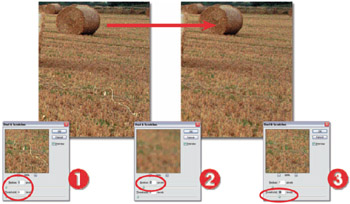
To find settings that provide a good balance, first try adjusting the threshold setting to zero. Next, use the preview box in the Filter dialog to highlight a mark that you want to remove. Use the zoom controls to enlarge the view of the defect. Now drag the Radius slider to the right. Find, and set, the lowest radius value where the mark is removed. Next, increase the threshold value gradually until the texture of the image is restored and the defect is still removed. See Figure 5.30.


Figure 5.30: Follow the...

UNLIMITED FREE
ACCESS
TO THE WORLD'S BEST IDEAS

SUBMIT
Already a GlobalSpec user? Log in.

This is embarrasing...

An error occurred while processing the form. Please try again in a few minutes.

Customize Your GlobalSpec Experience

Category: Long Pass Filters and Short Pass Filters
Finish!
Privacy Policy

This is embarrasing...

An error occurred while processing the form. Please try again in a few minutes.