Instant Encore 1.5

Chapter 6: Navigation

Intuitive navigation is the goal of every DVD author. Every button should link to an asset on the DVD. This link may be to another menu, such as an Audio/Subtitle selection menu, or to a chapter point along the major timeline of the DVD.

How the viewer of the finished DVD navigates from button to button is addressed, managed, and changed by the DVD author. Even the Title, Menu and number buttons on the viewer's remote control can be assigned functions.

Link Buttons to Chapter Points

Many DVD's have submenus that allow the viewer to directly access chapters in a timeline. This way the viewer doesn't have to skip through the chapters while viewing the timeline.

Note

Use Still or Motion Thumbnails to spice up these chapter selection menus. See related sections in the next chapter for more detail.

While this may not be a feature in some DVD's, the Play or Play All button nearly always exists. This is linked to the first chapter point of a timeline. Also any buttons for slideshow presentations are linked to the first chapter point.

Encore offers many ways to link buttons to chapter points.

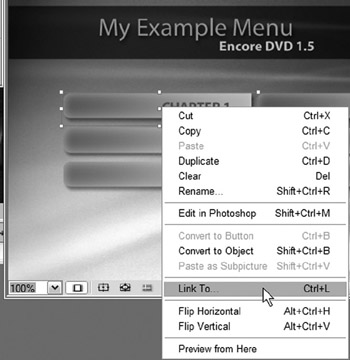
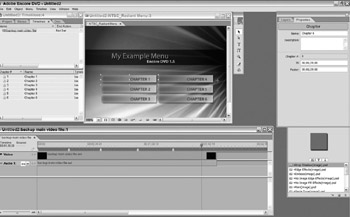
To link a button in the Menu Editor:

Right click on the button

Select Link To

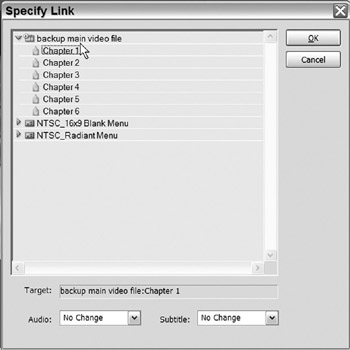
This will open the Link To dialog

From the list of selections, open the Timeline this button will link to.

All the chapter points on that particular timeline are now displayed.

Select the desired chapter point.

Click OK.

The button, when...

UNLIMITED FREE
ACCESS
TO THE WORLD'S BEST IDEAS

SUBMIT
Already a GlobalSpec user? Log in.

This is embarrasing...

An error occurred while processing the form. Please try again in a few minutes.

Customize Your GlobalSpec Experience

Category: Spring Stops
Finish!
Privacy Policy

This is embarrasing...

An error occurred while processing the form. Please try again in a few minutes.