Instant Encore 1.5

Chapter 7: Takin' on Hollywood Advanced Menu Authoring

Once you've become familiar with creating simple menus and buttons in Encore, you quickly branch off into some of the more complicated and creative facets of DVD authoring. None of these features are required for a basic DVD, but the creative author will enjoy taking their DVD's to the next level.

Create Audio/Language and Subtitle Submenus

If you imported several audio tracks or created subtitle tracks for one feature, it makes sense to create a DVD menu that allows the viewer to access those additional tracks.

Basically a button on an audio/language/subtitle submenu instructs the DVD player to play another audio or subtitle track while playing the timeline. Start by creating a menu that identifies the available tracks. Then when linking buttons, a special command must be included with the button's linking instructions.

To set a button to play an audio or subtitle track:

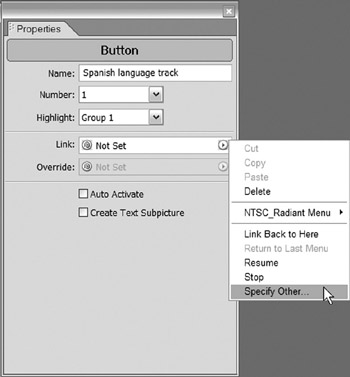
Select the button and open its Properties Palette.

In the Link To Field click the arrow and select Specify Other

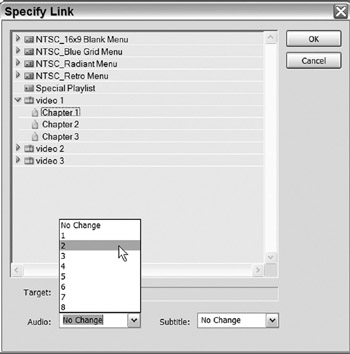
This opens the Link To Dialog with options for linking and track selection. The simplest way to switch audio tracks is to link this button to the first chapter point of the timeline.

Link the button to the first chapter point of the timeline.

Then in the Audio Field, select the desired audio track number

Or

Select the Subtitle track number.

Click OK

Now when the button is activated it will go directly to the first chapter of the timeline and play the audio or subtitle...

UNLIMITED FREE
ACCESS
TO THE WORLD'S BEST IDEAS

SUBMIT
Already a GlobalSpec user? Log in.

This is embarrasing...

An error occurred while processing the form. Please try again in a few minutes.

Customize Your GlobalSpec Experience

Category: Media and Presentation Software
Finish!
Privacy Policy

This is embarrasing...

An error occurred while processing the form. Please try again in a few minutes.