AutoCAD Pocket Reference: For Release 2006, 2005 and 2004

DIMENSIONING A LARGE CURVE VERSION 2006 ONLY

When dimensioning an arc the dimension line should pass through the center of the arc.

However, for large curves, the center of the arc could be very far away. Even off the sheet.

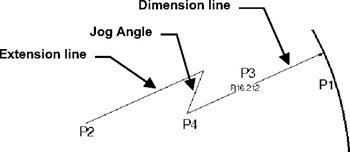
When the true center location cannot be displayed you can create a "Jogged" radius dimension.

Example:

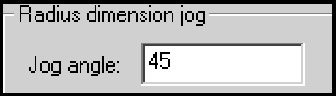
You can specify the jog angle in the Dimension Style / Symbols and Arrows tab.

  1. Select the Jogged radius dimension using one of the following:

    TYPING = dimjogged
    PULLDOWNS = Dimension / jogged
    TOOLBARS = Dimension

  2. Select arc or circle: select the large arc or circle (P1 anywhere on arc)

  3. Specify center location override: move the cursor and left click to specify the new center location (P2).

    Dimension text = (actual radius will be displayed here)

  4. Specify dimension line location or [Mtext/Text/Angle]: move the cursor and left click to specify the location for the dimension text (P3).

  5. Specify jog location: move the cursor and left click to specify the location for the jog (P4).

Options:

Mtext Displays the In-Place Text Editor, which you can use to edit the dimension text.

Text You may customize the dimension text on the command line. The actual dimension is displayed in brackets < >.

Angle Changes the angle of the dimension text.

UNLIMITED FREE
ACCESS
TO THE WORLD'S BEST IDEAS

SUBMIT
Already a GlobalSpec user? Log in.

This is embarrasing...

An error occurred while processing the form. Please try again in a few minutes.

Customize Your GlobalSpec Experience

Category: Hypoid Gears
Finish!
Privacy Policy

This is embarrasing...

An error occurred while processing the form. Please try again in a few minutes.