AutoCAD Pocket Reference: For Release 2006, 2005 and 2004

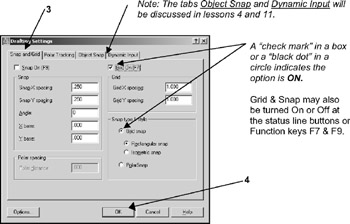
The DRAFTING SETTINGS dialog box allows you to set the INCREMENT SNAP and GRID SPACING. You may change the Increment Snap and Grid Spacing at anytime while creating a drawing. The settings are only drawing aids to help you visualize the size of the drawing and control the movement of the cursor.
INCREMENT SNAP controls the movement of the cursor. If it is OFF the cursor will move smoothly. If it is ON, the cursor will jump in an incremental movement. This incremental movement is set by changing the "Snap X and Y spacing".
GRID is the dot matrix in the drawing area. Grid dots will not print. The grid is only a visual aid. The Grid dot spacing is set by changing the "Grid X and Y spacing".
Select DRAFTING SETTINGS by using one of the following:
TYPING = DS
PULL-DOWN = TOOLS / DRAFTING SETTINGS
TOOLBAR = NONE
The dialog box shown below will appear.
Select the "Snap and Grid" tab.

Make your changes and select the OK button to save them. If you select the CANCEL button, your changes will not be saved.
Consider the drawing limits as the size of the paper you will be drawing on. You will first be asked to define where the lower left corner should be placed, then the upper right corner, similar to drawing a Rectangle. An 11 17...