AutoCAD Pocket Reference: For Release 2006, 2005 and 2004

Sorry LT users, this command is not available to you.
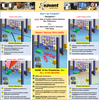
Quick Dimension creates multiple dimensions with one command. Quick Dimension can create Continuous, Staggered, Baseline, Ordinate, Radius and Diameter dimensions. Qdim only works in modelspace. It is not trans-spatial.
Select the Quick Dimension command using one of the following:
TYPE = QDIM
PULLDOWN = Dimension/Quick Dimension
TOOLBAR = DIMENSIONCommand: _qdim
Associative dimension priority = Endpoint
Select geometry to dimension
CONTINUOUS
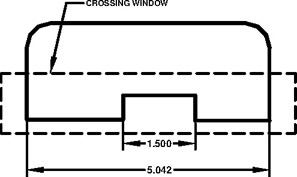
Select the objects to be dimensioned with a crossing window or pick each object
Press
Specify dimension line position, or [Continuous/Staggered/Baseline/Ordinate/Radius/Diameter/datumPoint/Edit/settings]
Select the location of the dimension line.

2. Select the objects to be dimensioned with a crossing window or pick each object.
3. Press
4. Specify dimension line position, or [Continuous/Staggered/Baseline/Ordinate/Radius/Diameter/datumPoint/Edit/settings]
5. Select the location of the dimension line.

2. Select the objects to be dimensioned with a crossing window or pick each object.
3. Press
4. Specify dimension line position, or [Continuous/Staggered/Baseline/Ordinate/Radius/Diameter/datumPoint/Edit/settings]
5. Select the location of the dimension line.

2. Select the objects to be dimensioned with a crossing window or pick each object (Qdim will automatically filter out any linear dims)
3. Press
4. Specify dimension line position, or [Continuous/Staggered/Baseline/Ordinate/Radius/Diameter/datumPoint/Edit/settings]
5. Select the location of the dimension line.
(Dimension line length is...