AutoCAD Pocket Reference: For Release 2006, 2005 and 2004

Section 5: How to

ADD A PRINTER / PLOTTER

The following are step-by-step instructions on how to configure AutoCAD for your printer or plotter. These instructions assume you are a single system user. If you are networked or need more detailed information, please refer to your AutoCAD users guide.

Note

You can configure AutoCAD for multiple printers. Try adding the printer shown in this example and then add your own.

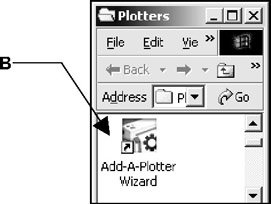
  1. Select File / Plotter Manager

  2. Select "Add-a-Plotter" Wizard

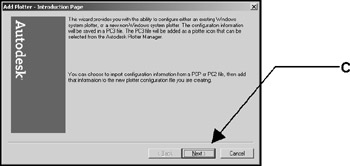
  3. Select the "Next" button.

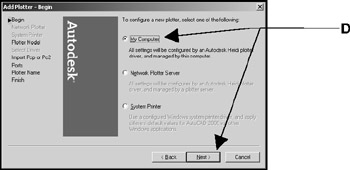
  4. Select "My Computer" then Next.

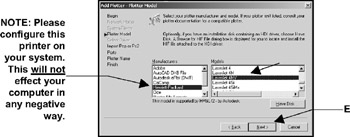
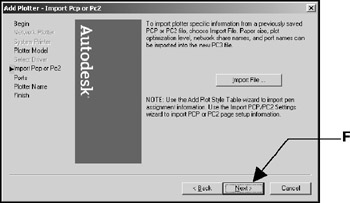
  5. Select the Manufacturer and the specific Model desired then N ext.

    (If you have a disk with the specific driver information, put the disk in the disk drive and select "Have disk" button then follow instructions.)

  6. Select the "Next" box.

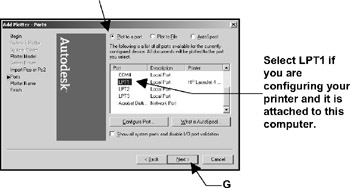
  7. Select "Plot to a port". Then select "Next".

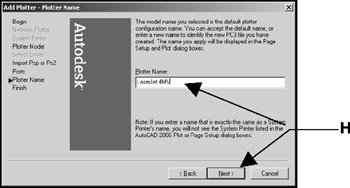
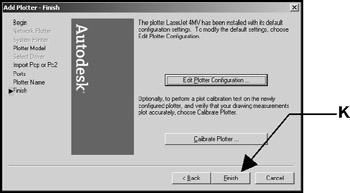
  8. The Printer name, that you previously selected, should appear. Then select "Next"

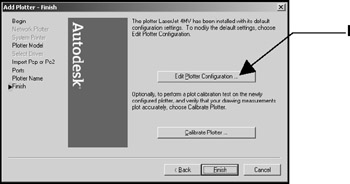
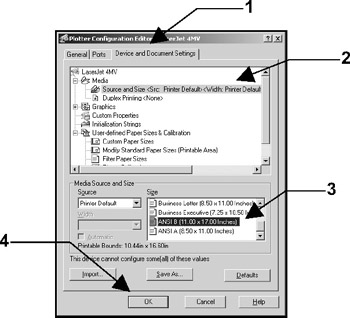
  9. Select the "Edit Plotter Configuration " box.

  10. Select:

    1. Device and Document Settings tab.

    2. Media: Source and Size

    3. Size: Ansi B (11 17 inches)

    4. OK box.

  11. Select "Finish".

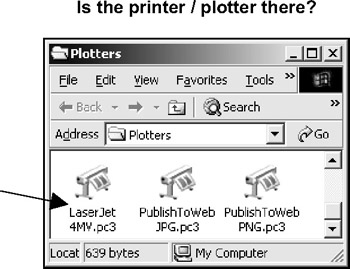
  12. Now check the File / Plotter Manager.

HOW TO CREATE A PAGE SET UP FOR PAPER SPACE VERSION 2004 ONLY

To setup a sheet in Paper Space (Layout tab), you must specify what printing device to use and what paper size to print on. These specifications are called the " Page Setup".

SET UP THE PAPERSPACE ENVIRONMENT.

Setting up the Paperspace environment means name the layout tab,...

UNLIMITED FREE
ACCESS
TO THE WORLD'S BEST IDEAS

SUBMIT
Already a GlobalSpec user? Log in.

This is embarrasing...

An error occurred while processing the form. Please try again in a few minutes.

Customize Your GlobalSpec Experience

Category: Marking and Engraving Equipment
Finish!
Privacy Policy

This is embarrasing...

An error occurred while processing the form. Please try again in a few minutes.