AutoCAD Pocket Reference: For Release 2006, 2005 and 2004

Section 6: Layers

LAYERS

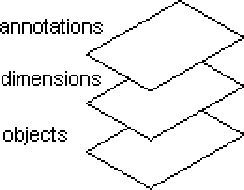
A LAYER is like a transparency. Have you ever used an overhead light projector? Remember those transparencies that are laid on top of the light projector? You could stack multiple sheets but the projected image would have the appearance of one document. Layers are basically the same. Multiple layers can be used within one drawing.

The example, on the right, shows 3 layers. One for annotations (text), one for dimensions and one for objects.

It is good "drawing management" to draw related objects on the same layer. For example, in an architectural drawing, you could have the walls of a floor plan on one layer and the Electrical and Plumbing on two other layers. These layers can then be Thawed (ON) or Frozen (OFF) independently. If a layer is Frozen, it is not visible. When you Thaw the layer it becomes visible again. This will allow you to view or make plots with specific layers visible or invisible.

SELECTING A LAYER - Method 1. (Also refer to Method 2)

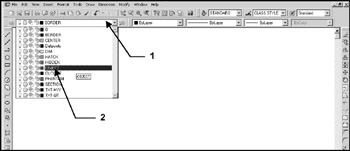
  1. Display the LAYER CONTROL DROP-DOWN LIST below by clicking on the down arrow. ( )

  2. Click on the Layer Name you wish to select. The Layer selected will become the Current layer and the drop-down list will disappear. The Current layer means that the next object drawn will reside on this layer and will have the same color, linetype and lineweight. These are called Properties.

SELECTING A LAYER - METHOD 2 FOR VERSION 2006 AND 2005.

  1. Select the...

UNLIMITED FREE
ACCESS
TO THE WORLD'S BEST IDEAS

SUBMIT
Already a GlobalSpec user? Log in.

This is embarrasing...

An error occurred while processing the form. Please try again in a few minutes.

Customize Your GlobalSpec Experience

Category: 3D Printers and Additive Manufacturing Machines
Finish!
Privacy Policy

This is embarrasing...

An error occurred while processing the form. Please try again in a few minutes.