AutoCAD Pocket Reference: For Release 2006, 2005 and 2004

Section 12: UCS and Origin

DISPLAYING THE UCS ICON

The UCS icon is merely a drawing aid. You control how it is displayed. It can be visible (on) or invisible (off). It can move with the Origin or stay in the default location. You can even change its appearance.

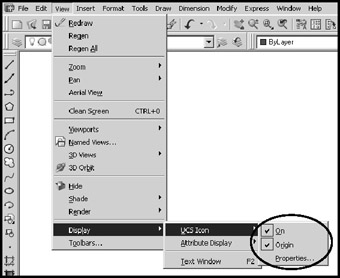
Select the following pull-down menu:

View / Display / UCS Icon

ON A check mark beside the word ON means the UCS icon will be visible. Remove the check mark and the UCS icon will disappear. It will be very helpful to have the UCS Icon "On" most of the time. It displays where the Origin is located.

ORIGIN A check mark beside the word Origin will move the UCS Icon with the Origin each time you move the Origin. Remove the check mark and the icon will not move.

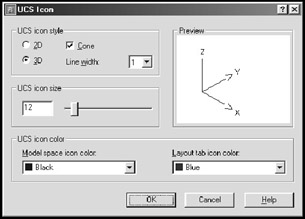
PROPERTIES This setting allows you to change the appearance of the UCS icon. When you select this option the dialog box shown below will appear. You may change the Style, Size and Color at any time. Changing the appearance is personal preference and will not affect the drawing or commands.

MOVING THE ORIGIN

The ORIGIN is where the X, Y, and Z axes intersect. The Origin's (0,0,0) default location is in the lower left-hand corner of the drawing. But you can move the Origin anywhere on the screen using the UCS command. (The default location is designated as the " World" option or WCS. When it is moved it is UCS.)

UNLIMITED FREE
ACCESS
TO THE WORLD'S BEST IDEAS

SUBMIT
Already a GlobalSpec user? Log in.

This is embarrasing...

An error occurred while processing the form. Please try again in a few minutes.

Customize Your GlobalSpec Experience

Category: Rotary Switches
Finish!
Privacy Policy

This is embarrasing...

An error occurred while processing the form. Please try again in a few minutes.