AutoCAD Pocket Reference: For Release 2006, 2005 and 2004

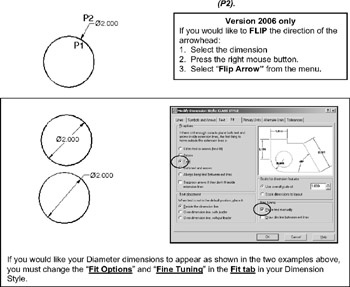
The DIAMETER dimensioning command should be used when dimensioning circles and arcs of more than 180 degrees.
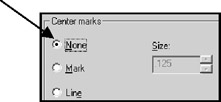
Center marks are automatically drawn as you use the diameter dimensioning command. If the circle already has a center mark or you do not want a center mark, set the center mark setting to NONE (Dimension Style / Symbols and Arrows tab) before using Diameter dimensioning.

Select the Dimension / Diameter command or
. Command: _dimdiameter
Select arc or circle: click on the arc or circle (P1). Location is not important; do not use object snap.
Dimension text = the diameter will be displayed here.
Specify dimension line location or [Mtext/Text/Angle]: place dimension text location (P2).

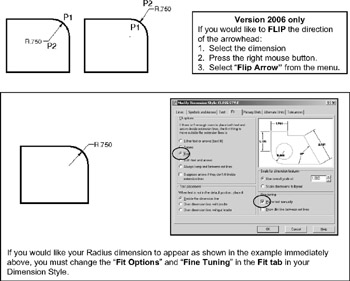
The RADIUS dimensioning command should be used when dimensioning arcs of LESS than 180 degrees.
Center Marks are automatically drawn as you use the RADIUS dimensioning command. If the circle already has a center mark, set the center mark to NONE (in the Dimension Style) before using RADIUS dimensioning. Or create a "sub-style".

Select the Dimension / Radius command or
Command: _dimradius
Select arc or circle: click on the arc (P1). Location is not important, do not use snap.
Dimension text = the radius will be displayed here
Specify dimension line location or [Mtext/Text/Angle]: place dim text location (P2)