AutoCAD Pocket Reference: For Release 2006, 2005 and 2004

TYPING = A
PULLDOWNS = DRAW / ARC
TOOLBARS =DRAW![]()
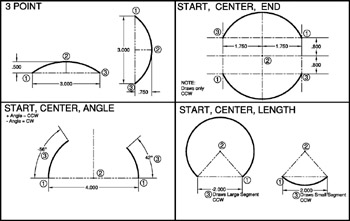
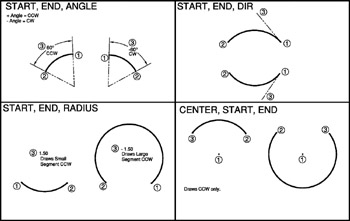
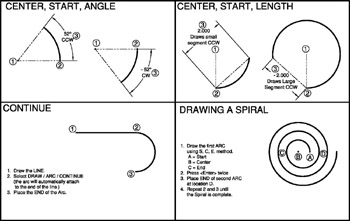
There are 10 ways to draw an ARC in AutoCAD. Not all of the ARCS options are easy to create so you may find it is often easier to trim a Circle or use the Fillet command.
On the job, you will probably only use 2 of these methods. Which 2 depends on the application.
An ARC is a segment of a circle and must be less than 360 degrees.
Most ARCS are drawn counter-clockwise but you will notice in the examples on the following pages that some may be drawn clockwise by entering a negative input.
Examples of each of the ARC options are shown on the following pages.
Also, refer to the "Help" menu for additional examples of the use of the Arc command.


A BLOCK is a group of objects that have been converted into ONE object. A Symbol, such as a transistor, bathroom fixture, window, screw or tree, is a typical application for the block command. First a BLOCK must be created. Then it can be INSERTED into the drawing. An inserted Block uses less file space than a set of objects copied.
First draw the objects that will be converted into a Block.
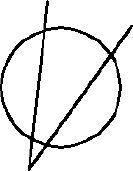
For this example a circle and 2 lines are drawn.

Select the BMAKE command using one of the following:
TYPE = B
PULLDOWN = DRAW / BLOCK / MAKE
TOOLBAR...