AutoCAD 2009 Essentials
By solving all of the workshops included that complete small projects from concept through actual plotting, this guide will help you simulate the creation of a real life project from beginning to end.
 TABLE OF CONTENTS
 In order to write text in AutoCAD you first need to create your own Text Style.
In Text Style you will specify the characteristics of your text that will apply to all the texts you will write in your drawing file.
You should have a good number of text styles in your drawing in order to cover all the requirements (big fonts for titles, small fonts for remarks, special text style for dimensions, etc.).
Text styles can be shared between files using Design Center.
After you create your Text Style, you can use several commands to write text in your drawing:
Single line text (old method)
Multiline text (new method)
After you're finished writing you can edit and spell check the written text.
In order to create Tables with text, you have to create a Table Style.
Then you can insert a table and write text inside it.
Table styles can be shared between files using Design Center.
The first step in writing text in AutoCAD is to create a Text Style.
Text style is where you define the characteristics of your text.
 To start the Text Style command, make sure that you are at the Annotate tab on the Ribbon and using the Text panel, select the Text Style button.
The following dialog box will appear:
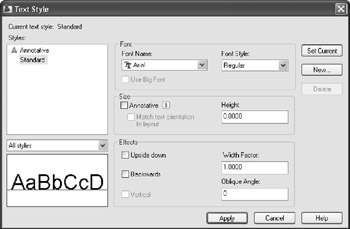
As you can see AutoCAD comes with a default text style called Standard.
This style contains the default settings of the...