AutoCAD 2009 Essentials
By solving all of the workshops included that complete small projects from concept through actual plotting, this guide will help you simulate the creation of a real life project from beginning to end.
 TABLE OF CONTENTS
  To start the Dimension Style command, make sure that you are at the Annotate tab on the Ribbon and using the Dimensions panel, click the Dimension Style button.
The following dialog box will appear:

By default there is a template for the dimension style called Standard.
You can modify this style or create your own (preferable).
To create a new style, click the New button, and the following dialog box will appear:
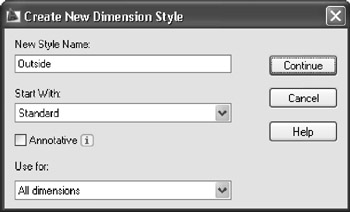
Type in the new style name using the same naming convention as layers.
Select the Start With style (you will start with a copy of this style).
Keep Annotative off for now.
By default the changes you make will be implemented for all types of dimensions, but you can create a new dimension style that will affect a certain type of dimension.
Click the Continue button, then you can start modifying the settings. In the following sections we will cover each tab of the Dimension style dialog box.
| Note | In this dialog box whenever you find the Color setting, leave it as is as we should control our colors through layers and not through individual objects. This also applies to Linetype and Lineweight. |