AutoCAD 2009 Essentials

By solving all of the workshops included that complete small projects from concept through actual plotting, this guide will help you simulate the creation of a real life project from beginning to end.
 TABLE OF CONTENTS
 Click the Fit tab and you will see the following:
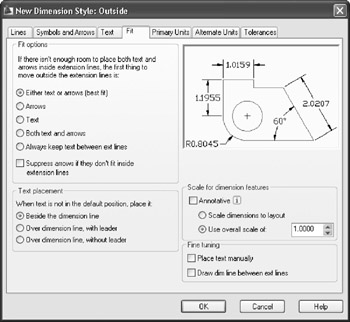
As an introduction to the Fit tab, notice that there are three things within the two Extension lines: Dimension line, Arrowheads, and Dimension text. AutoCAD will put them all inside the two Extension lines when the distance is comfortable enough for all of them. But what if there is not enough room? We will discuss that answer here.
Under Fit options adjust the following settings:
Select one of the five options to decide how AutoCAD will treat Arrowheads and Dimension text.
Select whether to Suppress arrows if they don't fit inside extension lines.
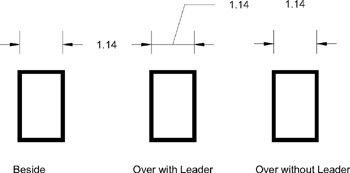
Under Text placement, control the placement of the text. If it doesn't fit inside the extension lines, you have three options to choose from: Beside the dimension line, Over the dimension line with leader, and Over the dimension line without leader. Take a look at the following illustration:
Under Scale for dimension features adjust the following settings:
Keep Annotative off for now.
Set the Scale dimension to layout (we will discuss layouts in the next chapter).
For any distance, length, or size you will input a value. Use overall scale of is a setting which will magnify or shrink the whole values in one step. This will not affect the distance measured.
Under Fine tuning adjust the following settings:
If you don't trust AutoCAD to place your text in the right place,...