AutoCAD 2009 Essentials
By solving all of the workshops included that complete small projects from concept through actual plotting, this guide will help you simulate the creation of a real life project from beginning to end.
 TABLE OF CONTENTS
 The first tab in the Dimension style dialog box is Lines, where we will control Dimension lines and Extension lines. It looks like the following:
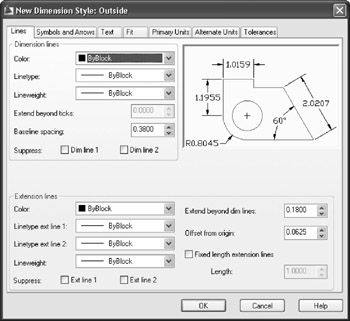
Under Dimension lines control the following settings:
The Color, Linetype, and Lineweight of the Dimension line.
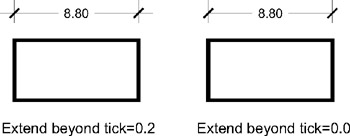
Extended beyond ticks (in order to edit this value, go to the Symbols and Arrows tab, and set the Arrowhead to be Architectural tick or Oblique). See the following illustration:
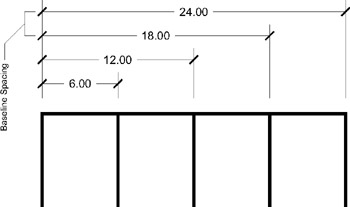
Baseline spacing, see the following illustration:
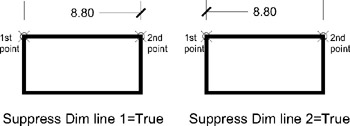
Select to Suppress Dim line 1, Dim line 2, for one of them, or for both. See the following illustration:
Under Extension lines control the following settings:
The Color, Linetype, and Lineweight of the Extension lines.
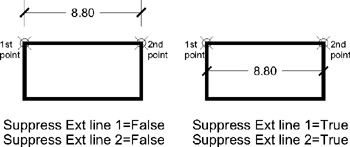
Select to Suppress Ext line 1, Ext line 2, for one of them, or for both. See the following illustration:
Specify Extend beyond dim lines and Offset from origin. Take a look at the following illustration:

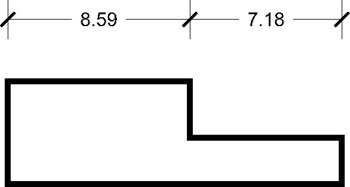
To set Fixed length extension lines, you have to specify the Length. In order to understand this setting, see the following example:
This example will clarify Fixed length extension lines:
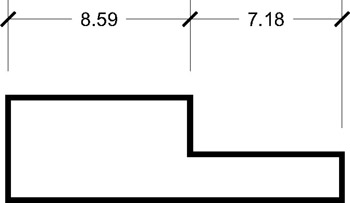
Assume we have the following case, and we want to create a linear dimension:

Before AutoCAD 2006, the only choice was as follows:
But in AutoCAD 2009, a new choice, Fixed length extension lines, is available to get the following:
| Note | The Length you will specify... |