AutoCAD 2009 Essentials
By solving all of the workshops included that complete small projects from concept through actual plotting, this guide will help you simulate the creation of a real life project from beginning to end.
 TABLE OF CONTENTS
 Click the Text tab and you will see the following:
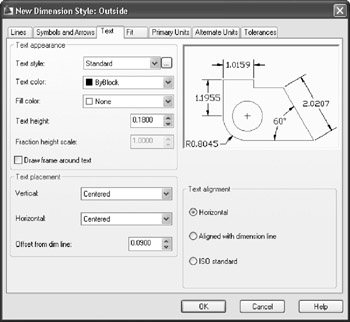
Under Text appearance adjust the following settings:
 Select the desired premade Text style to be used to write the dimension text. If you didn't create a Text style prior to this step, you can click the three dots button and create it right now.
Specify the Text color.
Specify the Fill color, which is the background color for the dimension text.
Input the Text height (this only applicable if the assigned Text style has a text height = 0.0).
If you go to the Primary Units tab and make the Unit format Architectural or Fractional, then the dimension text will appear something like 1 1/4. The question here is whether you want the fraction to appear with less height than the ordianry number, accordingly, set Fraction height scale.
Select whether to a Draw frame around the dimension text.
As an introduction to Text placement, take a look at the following illustration:
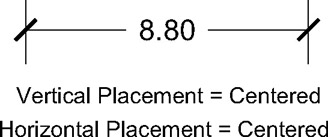
Under Text placement adjust the following settings:
Select the Vertical placement. You have four choices: Centered, Above, Outside, and JIS (Japan Industrial Standard). Take a look at the following illustration:
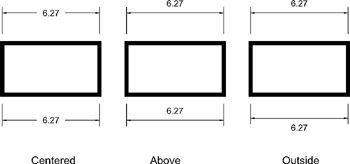
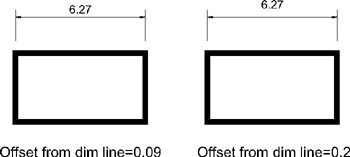
As for Above, set the Offset from dim line, which is the distance between dimension lines, and the baseline of the dimension text. Take a look at the following illustration:
Select the Horizontal placement. You have five...