The Focal Easy Guide to Adobe Audition 2.0

In this chapter we will take a look at how to import all the major file formats into Audition 2.0, including audio files and extract audio from CD & video files. A full list of supported file types that Audition 2.0 can import are given in the supported drop down menu on the import dialogue window. I've listed in no particular order some commonly used ones below:
Windows PCM (.wav)
Apple AIFF (.aif)
Broadcast wave file (.BWF)
Windows media (.wma)
Video files (.avi, mpeg, mpg, mp2 wma, mov)
Audio from video (wav, aif, mpeg, mp3, wma)
Audio from CD (.cda)
Mp3, mp3 pro (.mp3)
Audition Loop (.cel)
Ogg format (.ogg)
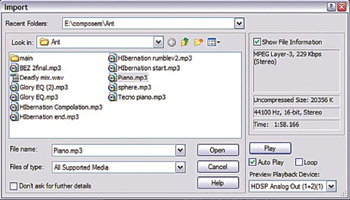
There are several ways of initially opening the import dialogue box before you locate, preview and import files into Audition 2.0. Listed below are four different methods; they all have the same function, so use whichever one you feel most comfortable with.
Click once on the Import File button
Go to File>Import (only in Multitrack View)
Right mouse click in the Files panel (Multi-track or Edit View)>Import
Import dialogue box
Double clicking anywhere in the files window area opens the import folder dialogue box
Once you have the Import dialogue box open, you can locate the desired audio file from your hard drive, then press open.
| Note | To preview the file before importing, highlight the file and press play or have the auto play box selected. If you can't hear any... |