The Focal Easy Guide to Adobe Audition 2.0

Working with Sessions

Audition saves your overall project settings in a session (.ses) file. These are relatively small files that hold all the information about your Multitrack layout: such as where the edit and cut points are along the timeline, what effects and how many tracks are in use and, importantly, where your audio is located.

To create a new session:

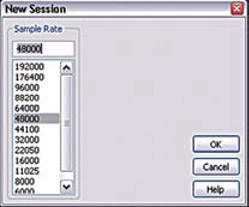
  1. Go to>file>new session

  2. Select a sample rate, e.g. 48 khz

  3. Press OK

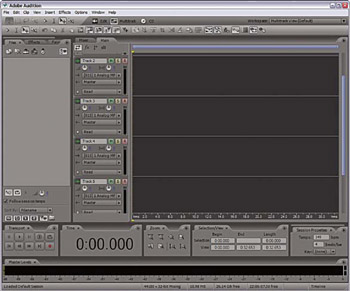
Multitrack default session

Saving a Default Session

To save your own default Multitrack session

This will open exactly the same way every time you open a new session:

  1. Set up Audition exactly how you want the Multitrack panels to look, including track heights, view, FX inserts and outputs busses

  2. Choose File>Default session>Set current session as Default Session

To open an existing project:

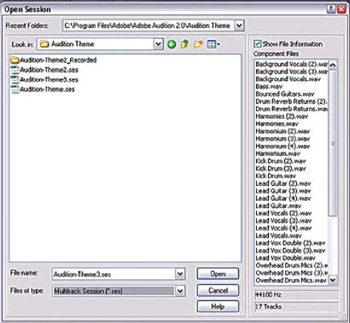
  1. Go to File>Open (The Open Sessions panel opens with your Recent Folders opened at the top)

  2. To locate sessions throughout your hard drive choose the Look in drop down menu. Highlighting a .ses file will display an information box showing particular file type information.

  3. Once you have located the appropriate File type (*.ses) press Open

To save a session:

  1. Go to File

  2. Choose Save Session

Note

This will save over any previous version with the same name.

Saving All

The Save All command saves changes to all the files open in your session, and the .ses file itself.

Saving a New Session

To save a new session under a new name keeping any previous versions:

UNLIMITED FREE
ACCESS
TO THE WORLD'S BEST IDEAS

SUBMIT
Already a GlobalSpec user? Log in.

This is embarrasing...

An error occurred while processing the form. Please try again in a few minutes.

Customize Your GlobalSpec Experience

Category: Network Appliances
Finish!
Privacy Policy

This is embarrasing...

An error occurred while processing the form. Please try again in a few minutes.