The Focal Easy Guide to Adobe Audition 2.0

Surround Sound has been widely recognised in the film industry as a standard requirement and has been in use in differing surround formats since the 1950s. Today it has expanded into a widely used format for film, home cinema, DVDs and, more recently, digital TV broadcasting and the internet. Surround Sound, and in particular 5.1 Surround Sound, is becoming widely accepted and available as a listenable format.
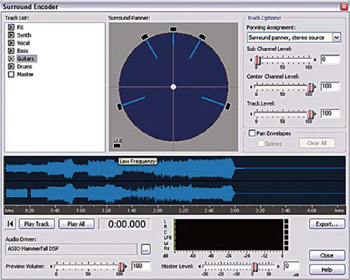
The Audition 2.0 Surround Encoder enables you to place a specific track in its own surround space. Often you will just want to place a specific sound in an area of the surround space and leave it there throughout the whole length of the track. Other times you will want to pan it around the surround space. Both are possible with the Adobe Audition Surround Encoder.

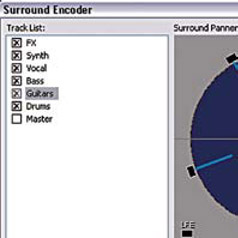
To open the Surround Encoder choose View>Surround Encoder from the Multitrack View. Once opened, all your tracks from the Multitrack View will be located on the Left hand side of the encoder under Track List.
Highlighting a track will show where it is placed within the Surround Panner i.e. L+R, stereo.

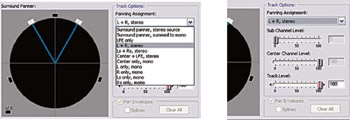
To assign a track to a specific 5.1 output:
Select the track you wish to assign from the track list
Locate the appropriate output from the Panning Assignment drop down menu
Adjust overall track level, centre the sub woofer channels with the Centre and Sub Channel Level located under Track Options