The Focal Easy Guide to Adobe Audition 2.0

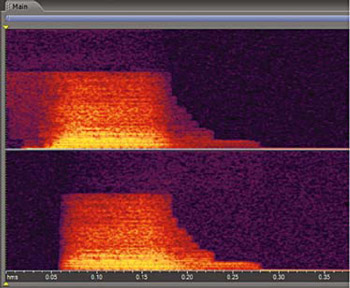
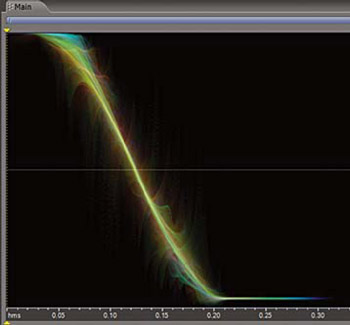
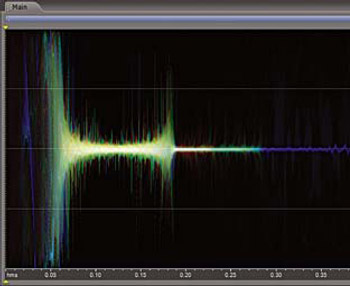
Probably the most amazing features of Adobe Audition 2.0 are the Restoration Tools. Live-recorded audio nearly always needs some kind of fixing, whether it be removing background noise from a film location recording, wind, hiss, camera noise, pops, clicks or taking out specific sounds. Adobe Audition 2.0 comes with several tools to get rid of unwanted sound. In this chapter we will go through the Restoration Tools step by step demonstrating methods of fixing your audio. The key feature Audition has is the Spectral Views, which allow you to see the audio in a whole new dimension. The Spectral views include:
Shows the waveform in a frequency view. Bright colours showing high amplitude, dark colours showing low amplitude.

Shows pan information, top of display showing left channel, bottom of display showing right channel.

Shows waveform phase, in-phase being closest to centre and Out of Phase being closer to 180 degrees.

The Phase Analysis tool graphically shows if your audio file is Out of Phase. The graph shows phase information vertically as: In-phase in the top section and Out of Phase below the horizontal L and R line. The centre green ball represents In-phase material and turns red if the audio file is out of phase. The stereo image is shown along the horizontal line with mono information in the centre. Phase information can be adjusted using the phase invert button located on the input section of the...