The Focal Easy Guide to Adobe Audition 2.0

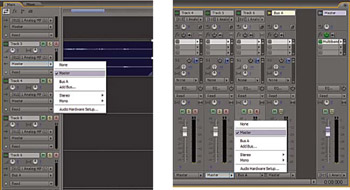
After completing the mixing process you will need to export all the separate audio tracks and parts from your multitrack session to a final stereo or mono file ready for distribution. By default all tracks within your multitrack session are sent to the Master output bus. Each track within your session can be assigned to an output from either the Main Multitrack View or the mixer as shown below.

To export an audio file:
Within the Multitrack View choose File>Export Audio Mix down
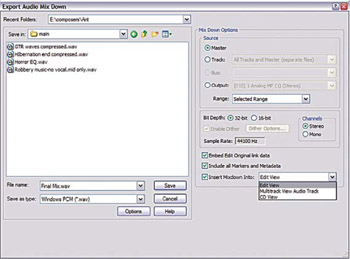
The Export Audio Mix down dialogue box opens where you can specify a name, location and file type
On the right hand side of the Export Audio Mix Down dialogue box you have options to export from a specific source. If you are unsure, select Master as this is the main output bus. Output options are either:
Choose Master from the Source View to mix all tracks from your Multitrack session down to a final stereo or mono wave file (Default session output Bus)
Export audio mix down dialogue box
Choose Track to export a single audio track from your multitrack session
Choose Output to export audio routed to a selected hardware output the default is the output selected for the Master channel, but if you have other buses with independent output channels set on them, they are available here, so that you can save whatever has been sent to them
Set the Range to either entire session or range
Set...