The Focal Easy Guide to Adobe Audition 2.0

Adjusting Volumes, Panning

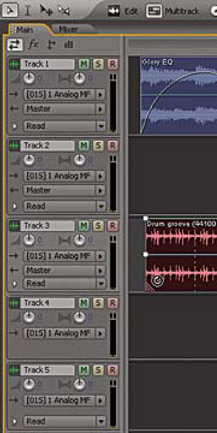
Audition's main view has been updated in Version 2, making adjusting Volume, Panning, adding Insert effects and Sends, a whole lot easier and fluid.

Located at the top of the Main panel are four buttons

  • Inputs/outputs

  • Effects

  • Sends

  • EQ

Highlighting any button changes all the Track Settings accordingly.

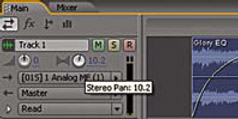
The track settings are located below the buttons with track numbers, e.g. Track 1, Mute, Solo controls, Record, along with Volume and Pan knobs.

To adjust the Volume and Pan of a whole track from the Main panel:

  1. With your mouse hovered over the volume or pan knob

  2. Click and hold turning to the left or right to increase or decrease level

  3. To reset Volume and Pan back to 0 hold down the ALT key and click

UNLIMITED FREE
ACCESS
TO THE WORLD'S BEST IDEAS

SUBMIT
Already a GlobalSpec user? Log in.

This is embarrasing...

An error occurred while processing the form. Please try again in a few minutes.

Customize Your GlobalSpec Experience

Category: Knobs (industrial)
Finish!
Privacy Policy

This is embarrasing...

An error occurred while processing the form. Please try again in a few minutes.