The Focal Easy Guide to Adobe Audition 2.0

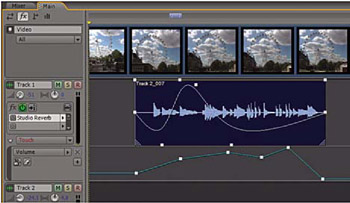
Located on each Audio Track of the main panel are Automation lanes showing parameter lanes for volume, pan, EQ and any Effects inserted on the track. These track automation lanes allow you to draw in setting changes with the mouse from the main panel or by using the slider controls within the mixer panel. Third party external mixer controllers (such as the Mackie control) can be used to input parameter changes. To show or hide the automation lanes, click on the small triangular arrow to the left of the automation status indicator at the bottom of the track control window. Multiple automation lanes are available per track by selecting the Show Additional Automation lanes
and choosing the appropriate parameter for that lane.
As well as specific track automation lanes, Volume and Pan Clip envelopes can be automated on an audio clip basis. Located on the audio clip are Volume and Pan lines that you can draw in automation points.
This can be very useful for drawing complex Volume and Pan changes on a single audio clip. As seen in the diagram below you have the option of straight linear graph points and spline-based curves between the control points.
Volume and Pan Clip Envelopes and Automation Lanes