The Focal Easy Guide to Adobe Audition 2.0

To draw in points manually:
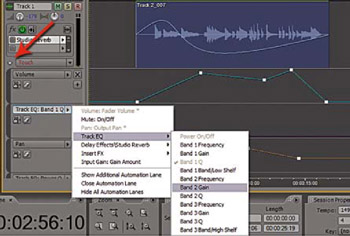
Click on the show/hide automation lanes (triangular arrow at bottom of track)
Set the parameter type to appropriate title (e.g. volume, pan, effect)
Draw in automation points manually within the main panel using the mouse within the automation lane or by using the mixer panel slider controls to input changes
Multiple Automation lanes
To use the Mixer panel Automation:
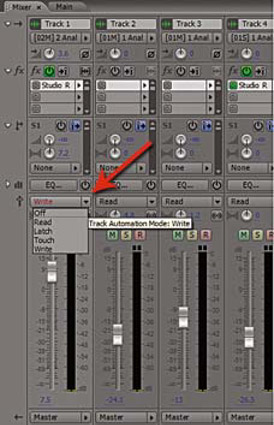
Open the Mixer panel
Set automation mode to write
Altering any controls at all in the mixer will cause the changes you make to be written to the track
It's important to note that if you've added an effect to a track, like the Studio Reverb shown below, and you then move the controls within its control panel these are also stored as automation changes when you are in Write mode. You can open any track effect you've set up in the mixer panel simply by double-clicking on it.
Off no automation is read during playback
Read plays any automation applied to track during playback and mix down
Latch records automation as soon as you make an adjustment, overrides previous automation until playback stops
Touch only records when a parameter is touched. Reverts to previous recorded automation when you stop adjustments
Write records automation straightaway from playback, not waiting for any parameter adjustment
Automation modes within mixer panel