The Focal Easy Guide to Adobe Audition 2.0

Trimming

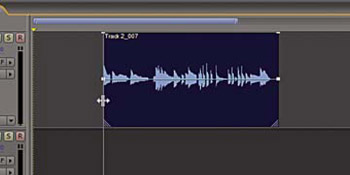
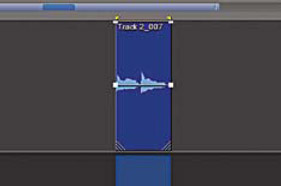
To shorten the front or end of an audio clip otherwise known as trimming:

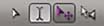
  1. Place any currently selected tool at the edge of the start or end of a clip (the tool changes into a Trim tool )

    Trim tool

  2. Drag the edge of the clip to shorten or lengthen it

Note

You can only lengthen the clip to its total original length; to lengthen it further than its original length use the time stretch/rate stretch tool.

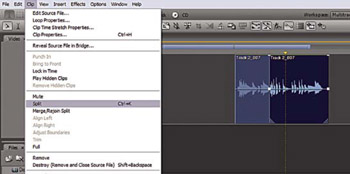
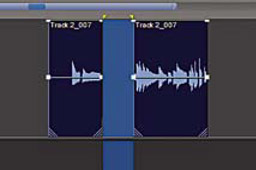
To split an audio clip (cut):

  1. With the Selection Tool locate to the point you want to cut

  2. Choose Clip>Split (CTRL+K)

Audio clip spit

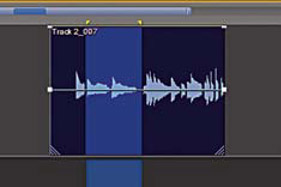
To trim the clip to a specific range:

  1. Select a range with the Selection or Hybrid tool

  2. Go to clip>trim, either by using the file menu, or right-clicking on your selection and selecting Trim from the options

    Clip trimmed

Selected range

To delete a specific range within a clip:

  1. Select a specific range with the Selection or Hybrid tool

  2. Press delete

    Delete range within audio clip

To adjust the clip boundaries:

  1. Select a range with the Selection or Hybrid Tool

  2. Go to Clip>Adjust boundaries

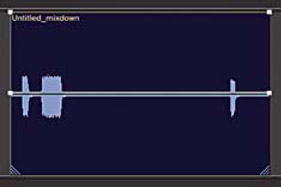
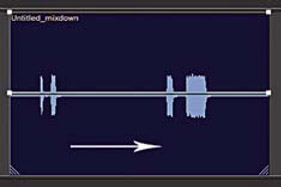
To slip the internal contents of an audio clip:

If the audio clip's start and end points are in the right location but the internal audio is playing the wrong section you may want to Slip (move) the internal contents.

Internal content clip

Internal content Slipped to the right within clip

  1. Select the Move Tool

  2. With the ALT key pressed>right click the audio...

UNLIMITED FREE
ACCESS
TO THE WORLD'S BEST IDEAS

SUBMIT
Already a GlobalSpec user? Log in.

This is embarrasing...

An error occurred while processing the form. Please try again in a few minutes.

Customize Your GlobalSpec Experience

Category: Nailers
Finish!
Privacy Policy

This is embarrasing...

An error occurred while processing the form. Please try again in a few minutes.