Designing Menus with Encore DVD

Learn to create great looking, functional menus using Encore DVD 1.5 with this insider's guide. To help you design better menus, this book explains all the facets of DVD menu design.
 TABLE OF CONTENTS
 A menu is the user interface for a DVD. It contains hotspots, which are called buttons. Buttons play video, go to additional menus, display text subtitles, or switch audio tracks. This chapter discusses both still and motion menus and the differences between the two.
This chapter presents the following topics.
Menu structure
Digital video and DVD menu design
The differences between still and motion menus
Types of menus
Types of links
To the viewer, a DVD menu appears to be a background image with buttons on top, but it is actually a single video frame without audio. As the user presses the arrows keys on the remote control, the selection moves among the buttons onscreen. The button's appearance changes as it is selected or activated. Pressing the Enter key activates a selected button and either goes to the button's link destination or executes a command, such as displaying subtitle text. Figure 2-1 shows the components of a menu.
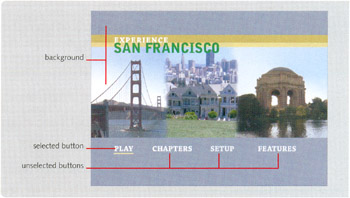
Although buttons go to links or initiate commands, they need not look like buttons in a software application. A button can be any combination of image, shape, and text. Most DVDs use only text with a simple rollover, as shown in Table 2-1.
| | Normal When a button is not selected. |
| | Selected A selection is made with the arrow keys on a remote or with the cursor if played on a computer. |
| | Activated Activation occurs when... |