Designing Menus with Encore DVD

Learn to create great looking, functional menus using Encore DVD 1.5 with this insider's guide. To help you design better menus, this book explains all the facets of DVD menu design.
 TABLE OF CONTENTS
 Many of the objects (menus, buttons, timelines, clips, chapters, etc.) within a project have attributes. When an object is selected, the Properties palette displays its attributes. Most of the attributes are editable, which makes this palette an indispensable tool in DVD authoring. Different properties are available, depending on the current selection. There are properties for: the disc, menus, buttons, playlists, timelines, chapters, video, audio, still, and subtitle clips, and assets.
| Production Tip | I am only going to cover Menu, Button, Timeline, Playlists, Chapter, and Disc properties. For the other Properties palettes, see the Encore DVD User Guide. |
To view the Properties palette, choose Window > Properties or press F5.
Several attributes in the project are links of two types: DVD authoring or asset links. To facilitate setting links, Encore DVD has a control that is similar to GoLive's link control or After Effects' pickwhip control.
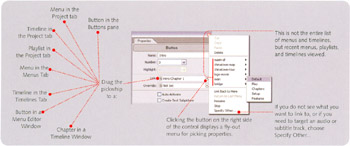
| Production Tip | The link controls used to set a menu's video and audio background only have pickwhip controls. |
To view a menu's properties while in the Menu Editor, choose Edit > Deselect All or press Shift+Ctrl+A.
The Menu Properties palette is displayed when a menu is selected in the Project or Menus tab. It is also displayed when there is no selection in the Menu Editor. When working in the Menu Editor, you use the Properties palette to set DVD-related properties for the menu and buttons. To see the properties for...