Designing Menus with Encore DVD

Learn to create great looking, functional menus using Encore DVD 1.5 with this insider's guide. To help you design better menus, this book explains all the facets of DVD menu design.
 TABLE OF CONTENTS
 The Library palette (Figure 6-31) stores buttons, menus, shapes, text, layer sets, and images. Encore DVD ships with a number of sets of items in the Library palette, but you are free to remove these items and add your own.
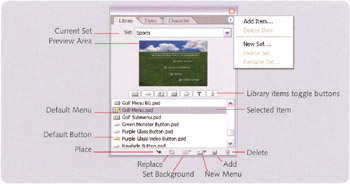
To narrow the display of items in the Library palette, click on the filter buttons above the list of library items. The items that are filtered out are temporarily hidden.
You can add items to a menu by clicking the Place button,  . It places the selected button or image from the Library palette onto the current menu. The Replace button,
  , swaps a selected button or layer from the current menu with the selected item in the Library palette. You can also drag a button or an image from the Library palette to a menu. The New Menu button,
  , creates a new menu from the selected menu.
Supported formats are listed in Table 6-1 on page 125.
To add items to the current Library set, do one of the following.
Drag buttons or menus to the palette.
Click the Add button,  , at the bottom of the palette.
Right-click inside the list and chose New Item.
Click the fly-out button,  , and choose Add Item.
Sets are a collection of Library Items. Encore DVD includes several default Library sets, but you can create, rename, and delete your own...