Designing Menus with Encore DVD

Learn to create great looking, functional menus using Encore DVD 1.5 with this insider's guide. To help you design better menus, this book explains all the facets of DVD menu design.
 TABLE OF CONTENTS
 In this chapter you will work with timelines and create simple motion motions in Encore DVD.
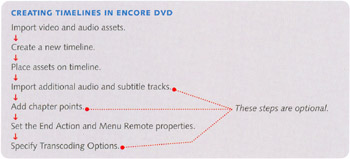
A timeline in Encore DVD is a video title sets (VTS) in DVD specification-speak. More importantly, to the viewers of your DVD, timelines are the video segments they choose to watch when they click a button on a menu. Timelines are easier to create than menus, and the workflow is straightforward, as shown in Figure 8-1.
| Production Tip | Always set the End Action property for timelines and test every timeline's end action in Preview mode. If a timeline has no end action, the disc goes into Stop mode which disorients and inconveniences the viewer. |
Why Embed Links?
Embedding project links facilitates integration between Encore DVD and Premiere Pro or After Effects. Selecting an asset and choosing Edit > Edit Original opens the Premiere Pro or After Effects project file. After editing the project and saving a new version of the asset, Encore DVD accepts the changes. If links are not embedded in the asset, Encore DVD cannot edit the original project file.
Embedding a Project Link in Premiere Pro
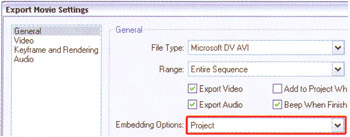
Select a video or sequence in the Project window and choose File > Export > Movie or press Ctrl+M. In the Export Movie Settings dialog, choose Project in the Embedding Options drop-down list.
Embedding a Project Link in After Effects
After adding a composition to the render queue, click on the composition's Output Module settings. In...