Designing Menus with Encore DVD

Learn to create great looking, functional menus using Encore DVD 1.5 with this insider's guide. To help you design better menus, this book explains all the facets of DVD menu design.
 TABLE OF CONTENTS
 This chapter is a complement, not a replacement, for the Adobe Encore DVD User Guide. It covers only the interface as it applies to menu design and it provides additional explanation on certain aspects of the user interface.
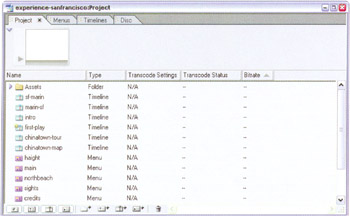
The New Project Settings dialog then appears and you are prompted to choose NTSC or PAL as the television standard. After choosing a standard, the Encore DVD main window appears. This window contains the Project, Menus, Timelines, and Disc tabs.
To create a project, choose File > New Project or press Ctrl+N.
| Production Tip | Closing the main window does not always close the project. The project closes when all windows (Menu Editor, Timelines, etc.) are closed or when Shift+Ctrl+W is pressed. |
Assembling a DVD begins by creating menus and timelines from imported assets: Photoshop menus, audio, video, and still images. If you have used the Project window in Adobe After Effects or Adobe Premiere Pro, Encore DVD's Project tab will appear familiar because it is essentially the same window found in the other two products. It is used to organize assets, menus, and timelines and is the first tab shown.
To open or close the Project tab, choose Window > Project or press F9.
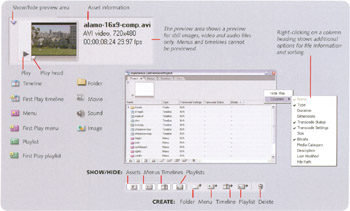
The video, sound, and image files destined for the final DVD need to be imported into Encore DVD. Encore provides several convenient methods for importing assets:
Choose File...