Designing Menus with Encore DVD

Learn to create great looking, functional menus using Encore DVD 1.5 with this insider's guide. To help you design better menus, this book explains all the facets of DVD menu design.
 TABLE OF CONTENTS
 In this last chapter I discuss 16:9 menus, slideshows, and advanced motion menu techniques.
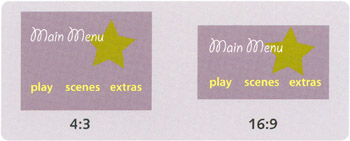
A 16:9 has an aspect ratio similiar to that of film. The main reason to create menus with a 16:9 aspect ratio is to watch video that was shot with a camera that produces 16:9 images.
For more information on 16:9 and 4:3 aspects ratios, refer to "Frame Aspects Ratio" on page 27
| On the DVD | Insert the book's DVD into your computer and open the Tutorials folder. Copy the Chapter 9 folder to the local hard disk before beginning these tutorials. |
In this tutorial, you will crop and resize a digital photo to a 16:9 NTSC DVD resolution and use it as the background for a menu.
For more information on nonsquare pixels, see "Pixel Aspect Ratio " on page 28.
Launch Photoshop and choose File > Open.
Navigate to the Tutorial 21 folder, select homes, and click Open.
As mentioned earlier, the photograph is a four-megapixel image with roughly a 4:3 aspect ratio. You need to crop and resize it.
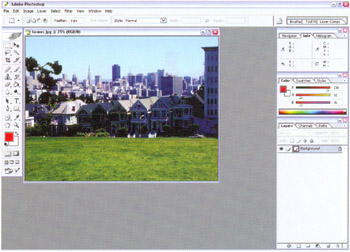
Choose Window > Options If the Options bar is not currently visible.
Select the Marquee tool,  . In the Options bar, choose Fixed Aspect Ratio for the style, and enter 16 for the width and 9 for the height. Also make sure the feather is set to 0.

With the Marquee...