AutoCAD Pocket Reference, 4th Edition

RE-DEFINING A BLOCK

How to change the design of a block previously inserted.

  1. Select Block Editor using one of the following:

    <b class="bold">Ribbon = Insert tab / Block panel / <span class="inlinemediaobject"><img alt="Image from book"> border="0"> height="26"> id="IMG_192"> src="https://images.books24x7.com/bookimages/id_30311/figu4-12_1.jpg"> title=""> width="31"></span>Keyboard = bedit</b>

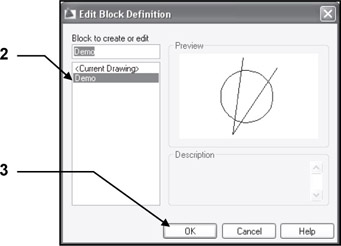
    The " Edit Block Definition" dialog box will appear.

  2. Select the name of the Block that you wish to change.

  3. Select the OK button.

  4. The Block that you selected should appear large on the screen.

    You may now make any additions or changes to the block. You can change tabs and use other panels such as Draw and Modify. But you must return to the Block Editor tab to complete the process.

  5. Return to the Block Editor button if you selected any other tab.

  6. Select the Save block tool from the Open / Save panel.

  7. Select the Close tool.

You will be returned to the drawing and ALL of the blocks with the same name will be updated with the changes that you made.

UNLIMITED FREE
ACCESS
TO THE WORLD'S BEST IDEAS

SUBMIT
Already a GlobalSpec user? Log in.

This is embarrasing...

An error occurred while processing the form. Please try again in a few minutes.

Customize Your GlobalSpec Experience

Category: Anodizing Services
Finish!
Privacy Policy

This is embarrasing...

An error occurred while processing the form. Please try again in a few minutes.