AutoCAD Pocket Reference, 4th Edition

Very important:
Before I discuss Model and Layout I need you to make a change to the options. The default AutoCAD screen does not display the Model and Layout tabs. AutoCAD gives you the option to displayed them or not. I prefer to have the tabs displayed. I think it will make it easier for you to understand.
This will just take a minute.
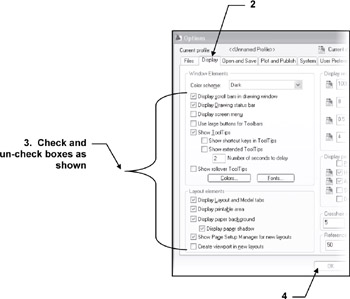
Type options
Select the Display tab.

Check and un-check boxes as shown.
Select the OK button
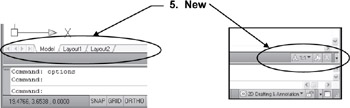
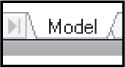
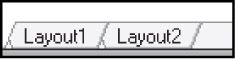
The lower left corner of the drawing area should now display the 3 tabs Model, Layout1 and Layout2 and a few new tools should be displayed in the lower right corner above the command line.

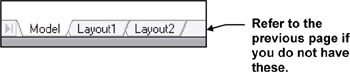
AutoCAD provides two drawing spaces, MODEL and LAYOUT. You move into one or the other by selecting either the MODEL or LAYOUT tabs, located at the bottom left of the drawing area. (If you do not have these displayed follow the instructions on the previous page.)

Model Tab (Also called Model Space)

When you select the Model tab you enter MODEL SPACE.
Model Space is where you create and modify your drawings.
Layout Tabs (Also called Paper Space)

When you select a Layout tab you enter PAPER SPACE.
The primary function of Paper Space is to prepare the drawing for plotting.
When you select the Layout tab for the first time, the "Page Setup...