AutoCAD Pocket Reference, 4th Edition

Section 6: Layers

LAYERS

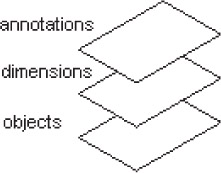
A LAYER is like a transparency. Have you ever used an overhead light projector? Remember those transparencies that are laid on top of the light projector? You could stack multiple sheets but the projected image would have the appearance of one document. Layers are basically the same. Multiple layers can be used within one drawing.

The example, on the right, shows 3 layers.

One for annotations (text), one for dimensions and one for objects.

HOW TO USE LAYERS

First you select the layer and then you draw the objects.

Always select the layer first and then draw the objects.

It is good "drawing management" to draw related objects on the same layer.

For example, in an architectural drawing, you would select layer "walls" and then draw the floor plan.

Then you would select the layer "Electrical" and draw the electrical objects.

Then you would select the layer "Plumbing" and draw the plumbing objects.

Each layer can then be controlled independently.

If a layer is Frozen, it is not visible. When you Thaw the layer it becomes visible again. (Refer to the following pages for detailed instructions for controlling layers.)

HOW TO SELECT A LAYER

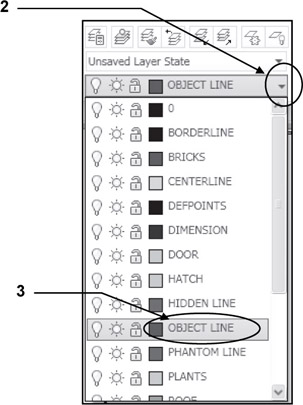
  1. Go to Ribbon = Home tab / Layers panel

  2. Select the drop down arrow ?

  3. Highlight the desired layer and press the left mouse button.

CONTROLLING LAYERS

The following controls can be accessed using the Layer drop down arrow ?.

ON or OFF

If a layer is ON

UNLIMITED FREE
ACCESS
TO THE WORLD'S BEST IDEAS

SUBMIT
Already a GlobalSpec user? Log in.

This is embarrasing...

An error occurred while processing the form. Please try again in a few minutes.

Customize Your GlobalSpec Experience

Category: Industrial Winches
Finish!
Privacy Policy

This is embarrasing...

An error occurred while processing the form. Please try again in a few minutes.