AutoCAD Pocket Reference, 4th Edition

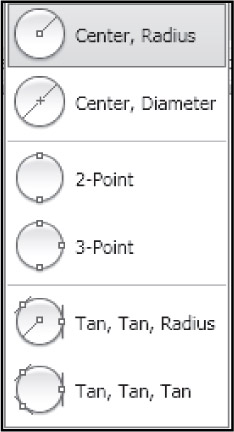
There are 6 options to create a circle.
The default option is " Center, radius". (Probably because that is the most common method of creating a circle.)
We will try the "Center, radius" option first.

Start the Circle command by using one of the following:
<b class="bold">Ribbon = Home tab / Draw panel / <span class="inlinemediaobject"><img alt="Image from book"> border="0"> height="20"> id="IMG_213"> src="https://images.books24x7.com/bookimages/id_30311/figu4-20_2.jpg"> title=""> width="32"></span>Keyboard = C</b>
The following will appear on the command line:
<b class="bold">Command:</b>_<b class="bold">circle Specify center point for circle or [3P/2P/Ttr (tan tan radius)]:</b>
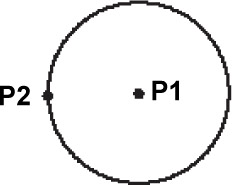
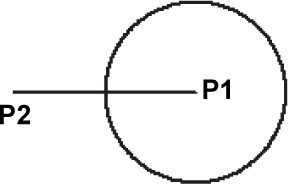
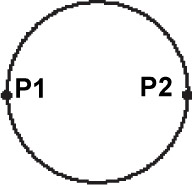
Locate the center point for the circle by moving the cursor to the desired location in the drawing area (P1) and press the left mouse button.
Now move the cursor away from the center point and you should see a circle forming.
When the circle is the size desired (P2), press the left mouse button, or type the radius and then press
| Note | To use one of the other methods described below, first select the Circle command, then select one of the other Circle options. |
Center, Radius: (Default option)
Specify the center (P1) location.
Specify the Radius (P2).
(Define the Radius by moving the cursor or typing radius)

Center, Diameter:
Specify the center (P1) location.
Specify the Diameter (P2). (Define the Diameter by moving the cursor or typing Diameter)

2 Points:
Select the 2 point option
Specify the 2 points (P1 and P2) that will determine the Diameter.

3 Points: