Planning Using Primavera SureTrak Project Manager Version 3.0 Revised 2006
Chapter 7: Adding Activities

Activities should be well defined and measurable pieces of work with a measurable outcome. Activities such as Specification have confusing meanings. Does this mean Draft, Review, Approve, Issue, or all of these? A more appropriate activity description would be Specification Approved or Specification Issued . It also helps to repeat the code title in the activity description (i.e.: System 1 Specification Issued if you have room). The limit for the descriptions is 48 characters so try to keep the activity descriptions brief but meaningful.

7.1 Adding New Activities

There are several methods to add a task or activity.

Method 1

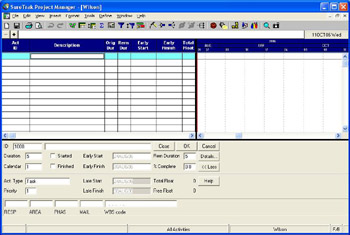
The first method is to click on the plus sign toward the top left of the screen and press F7 to access the Activity form. Select View, Activity Form to add activity data that may not be added in columns which are not currently being displayed

  • In the Activity Form, accept the SureTrak Activity ID or replace it with your own.

  • Tab and enter the Description.

  • Tab and enter the Duration.

  • Tab and assign the calendar if Calendar 1 is not correct.

  • The Remaining Duration (Rem Dur) will default to the original duration.

Method 2

The second method of adding an activity is to just click on the area below the existing activities. SureTrak will automatically create an activity for you.

Method 3

The third method is to select Insert, Activity or press the Ins (insert) key on the keyboard.

Method 4

Press the down...

UNLIMITED FREE
ACCESS
TO THE WORLD'S BEST IDEAS

SUBMIT
Already a GlobalSpec user? Log in.

This is embarrasing...

An error occurred while processing the form. Please try again in a few minutes.

Customize Your GlobalSpec Experience

Category: Ion Specific Electrode Meters
Finish!
Privacy Policy

This is embarrasing...

An error occurred while processing the form. Please try again in a few minutes.