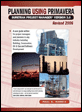
Planning Using Primavera SureTrak Project Manager Version 3.0 Revised 2006
Chapter 4: Navigating Around the Screen

4.1 The Screen

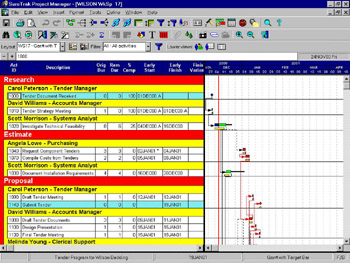
After a project has been created from a template or opened using File, Open the screen will look like the one below:

SureTrak has a Windows menu system with a typical Windows look and feel.

  • The project name is displayed in brackets after SureTrak Project Manager at the top of the screen.

  • The pull-down menus are just below the project name.

  • The vertical split between the column area on the left and the bar area on the right may be moved by highlighting the dividing line to display a double arrow, hold down the left mouse button and dragging the dividing line to the left or right.

  • There are three toolbars that may be displayed below the menu. They are the Tool Bar, Editing Toolbar and Layout Toolbar. These may be displayed or hidden using the command View and clicking on Toolbar, Editing Toolbar or Layout Toolbar.

  • The right-hand side of the line underneath the toolbars has the Datometer, the Datometer indicates the date at which the mouse is pointing.

  • The left-hand side of the line underneath the toolbars is the Edit Box. The and icons are used for adding and deleting activities, and the and icons are used for accepting and not accepting data changes.

  • The main display has the Bar Chart on the right-hand side and the Data Columns on the left-hand side with their titles above them.

UNLIMITED FREE
ACCESS
TO THE WORLD'S BEST IDEAS

SUBMIT
Already a GlobalSpec user? Log in.

This is embarrasing...

An error occurred while processing the form. Please try again in a few minutes.

Customize Your GlobalSpec Experience

Category: Computer Mice and Pointing Devices
Finish!
Privacy Policy

This is embarrasing...

An error occurred while processing the form. Please try again in a few minutes.