Planning Using Primavera SureTrak Project Manager Version 3.0 Revised 2006
Chapter 8: Formatting the Display

Overview

The on-screen presentation may be formatted so that the schedule displays the desired columns of information and bar format to enable updating or reporting of the schedule. This chapter covers the following customizing topics:

  • Columns

  • Bar Chart

  • Row Height

  • Screen Colors

  • Timescale

  • Zoomed timescale area

  • Sightlines

  • Relationship Lines.

8.1 Formatting Columns

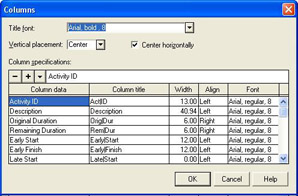
Formatting columns allows you to set up the columns you wish to see on the screen and in printouts. Select Format, Columns or double click on the column headings or click the icon on the toolbar to display the Columns form below.

  • The columns to be displayed are listed under Column data and appear from left to right on the screen.

  • Use the and under Column specifications to insert or delete columns.

  • The Column title allows the title to be customized. Use the pipe symbol (usually uppercase \) to force a new line in the title.

  • Use Width, Align and Font to format the data in the columns. The font will be adopted from the Default Font.

  • The Column titles are formatted using the Title font, Vertical placement and Center horizontally options in the upper box.

To change the order of column data in the Column specifications, click on the data item you wish to move, hold down the Ctrl key, left click with the mouse and drag to a new position. This function works...

UNLIMITED FREE
ACCESS
TO THE WORLD'S BEST IDEAS

SUBMIT
Already a GlobalSpec user? Log in.

This is embarrasing...

An error occurred while processing the form. Please try again in a few minutes.

Customize Your GlobalSpec Experience

Category: Columns
Finish!
Privacy Policy

This is embarrasing...

An error occurred while processing the form. Please try again in a few minutes.